Linuxbeast Developer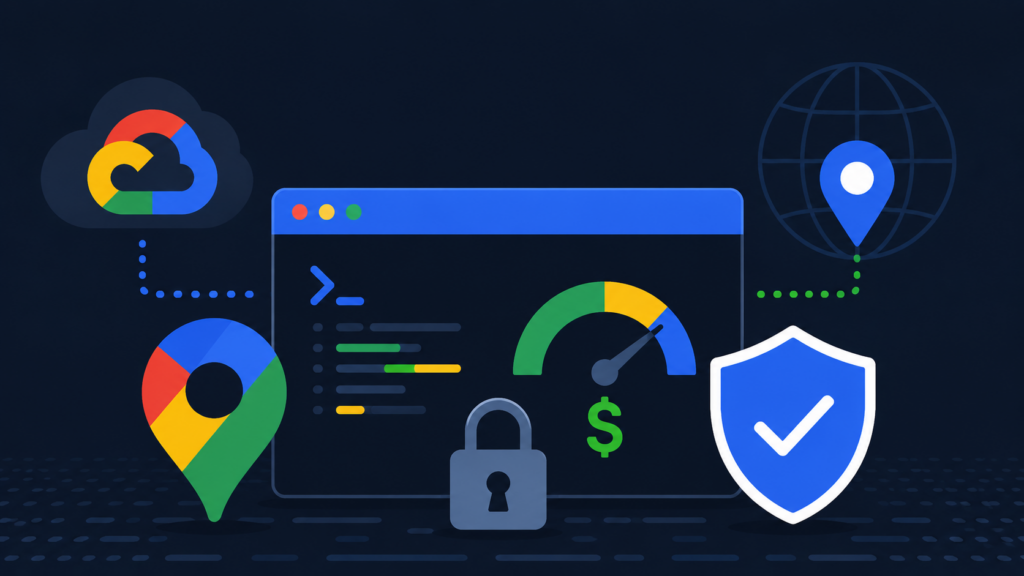
Google Maps Platform is easy to enable and easy to over-spend on. A leaked browser key, a runaway autocomplete loop, or a forgotten test page can drain hundreds of dollars overnight. This guide walks through the full Google Maps Platform gcloud CLI setup with two-key separation, IP and HTTP referrer restrictions, hard daily quota caps, and budget alerts, so your worst-case bill is bounded by configuration, not trust.
The examples here run on WSL2 Ubuntu in Windows, but the gcloud commands work the same on any Linux or macOS shell.
Prerequisites
- WSL2 Ubuntu 22.04 or 24.04. Follow How to Install Ubuntu 22.04 in WSL2 on Windows
if you don’t have it yet.
- A Google account with a Cloud project. The Maps Platform onboarding flow
creates one automatically if you sign up via
console.cloud.google.com.
- A credit card to add to the billing account. You stay inside the free tier with the caps in this guide, but Google requires a card on file.
- Comfort with shell tools and CLI-first workflows. If you’ve followed
How to Install AWS CLI v2 on Ubuntu 22.04, this will feel familiar.
Step 1: Install the gcloud CLI on WSL2 Ubuntu
Google ships an apt repository, which is cleaner than the snap or curl-pipe-bash install on Ubuntu. Run these once.
sudo apt-get update && sudo apt-get install -y apt-transport-https ca-certificates gnupg curl
curl https://packages.cloud.google.com/apt/doc/apt-key.gpg | sudo gpg --dearmor -o /usr/share/keyrings/cloud.google.gpg
echo "deb [signed-by=/usr/share/keyrings/cloud.google.gpg] https://packages.cloud.google.com/apt cloud-sdk main" | sudo tee /etc/apt/sources.list.d/google-cloud-sdk.list
sudo apt-get update && sudo apt-get install -y google-cloud-cliapt-transport-https,ca-certificates,gnupg: required to fetch and verify packages over HTTPS.gpg --dearmor: converts Google’s PGP key into the binary format apt expects in/usr/share/keyrings/.google-cloud-cli: the actual gcloud package; pulls in the latest stable SDK.
Authenticate and pick your project:
gcloud init
This opens a browser to sign in, then asks which Cloud project to set as the
default. Pick the one that owns your app, not the auto-generated demo
project from the Maps Platform onboarding wizard. The rest of this guide
assumes a project ID of my-app-project-id; substitute your real
value.
Step 2: Link billing to your project
Maps APIs return errors until your project is linked to a billing account. Get your billing account ID:
gcloud billing accounts list
Copy the ACCOUNT_ID column (format
XXXXXX-XXXXXX-XXXXXX), then link it:
gcloud billing projects link my-app-project-id \
  --billing-account=XXXXXX-XXXXXX-XXXXXX
Output should show billingEnabled: true. Without this, every
Maps API call returns BILLING_DISABLED.
Step 3: Enable only the APIs you actually use
The Maps Platform onboarding wizard auto-enables nearly 30 APIs by default: Aerial View, Pollen, Air Quality, Solar, Street View, Routes, Directions, Distance Matrix, and many more. Every enabled API is attack surface and accidental-charge surface. Disable everything except what your app needs.
For a typical address-search and map-rendering use case, three APIs are enough:
| API | Service name | Used for |
|---|---|---|
| Maps JavaScript API | maps-backend.googleapis.com | Interactive map rendering in the browser |
| Places API (New) | places.googleapis.com | Address autocomplete, Place Details |
| Geocoding API | geocoding-backend.googleapis.com | Free-text address to coordinates, and reverse |
Enable them plus the admin APIs you need for quota and budget management:
gcloud services enable \
  serviceusage.googleapis.com \
  billingbudgets.googleapis.com \
  apikeys.googleapis.com \
  maps-backend.googleapis.com \
  places.googleapis.com \
  geocoding-backend.googleapis.com \
  --project=my-app-project-id
Then list all enabled Maps-related APIs and disable anything you don’t recognise:
gcloud services list --enabled --project=my-app-project-id \
  | grep -iE "maps|places|geocod|directions|street|routes|distance"
To disable an unused API:
gcloud services disable directions-backend.googleapis.com \
  --project=my-app-project-id --force
Step 4: Create two separate API keys
Single-key setups are the most common reason developers wake up to a $5,000 bill. A browser key cannot be IP-restricted because users connect from arbitrary addresses; a server key cannot use HTTP referrer restrictions because servers don’t send a Referer header. Use two keys with different restriction types.
Browser key, HTTP referrer restricted
gcloud services api-keys create \
  --display-name="My App Browser Key (Maps JS)" \
  --project=my-app-project-id \
  --allowed-referrers="https://example.com/*,http://localhost:3000/*,http://localhost:*/*" \
--api-target=service=maps-backend.googleapis.com--allowed-referrers: only pages served from these origins can use the key. Add your dev domains and your production domain.--api-target: locks the key to Maps JavaScript API. A leaked browser key can’t be used to call Places, Geocoding, or anything else.
The output JSON includes a keyString field. Paste that value into your client-side env var (commonly NEXT_PUBLIC_GOOGLE_MAPS_API_KEY).
Server key, IP restricted
gcloud services api-keys create \
  --display-name="My App Server Key (Places + Geocoding)" \
  --project=my-app-project-id \
  --allowed-ips="203.0.113.0/24" \
  --api-target=service=places.googleapis.com \
--api-target=service=geocoding-backend.googleapis.com--allowed-ips: only requests from this CIDR can use the key. Use your server’s public IP (a/32) for production. For local development, use your home ISP’s public IP, find it withcurl ifconfig.me.--api-target: limits the key to Places and Geocoding only. Place Details and Place Autocomplete both live underplaces.googleapis.com.
Paste the server key into GOOGLE_MAPS_SERVER_API_KEY (without a
NEXT_PUBLIC_ prefix in Next.js, or whatever convention your
framework uses for server-only env vars). The server key must never appear
in the client bundle.
Dynamic home IPs change. If you want zero maintenance for dev, skip the IP restriction and rely on the daily quota caps in the next step to bound your blast radius.
Step 5: Set hard daily quota caps
Quota caps hard-stop requests. They cannot be bypassed by a bug, a leaked key, or a runaway loop. They are the single most important cost guardrail , more important than budget alerts, which only notify you after the bill is already accruing.
List the available quota metrics for each API so you target the right one:
gcloud alpha services quota list \
  --service=places.googleapis.com \
  --consumer=projects/my-app-project-id \
  --format="value(metric,displayName)"
Set sane starting caps. Tune up later as real traffic justifies:
gcloud alpha services quota update \
  --service=maps-backend.googleapis.com \
  --consumer=projects/my-app-project-id \
  --metric=maps-backend.googleapis.com/billable_default \
  --unit=1/d/{project} --value=2000 --force
gcloud alpha services quota update \
  --service=places.googleapis.com \
  --consumer=projects/my-app-project-id \
  --metric=places.googleapis.com/AutocompletePlacesRequest \
  --unit=1/d/{project} --value=500 --force
gcloud alpha services quota update \
  --service=places.googleapis.com \
  --consumer=projects/my-app-project-id \
  --metric=places.googleapis.com/GetPlaceRequest \
  --unit=1/d/{project} --value=500 --force
gcloud alpha services quota update \
  --service=geocoding-backend.googleapis.com \
  --consumer=projects/my-app-project-id \
  --metric=geocoding-backend.googleapis.com/billable_default \
  --unit=1/d/{project} --value=500 --force
Suggested starting limits for a small app: 2,000 Maps JS loads, 500 Place Autocomplete sessions, 500 Place Details calls, 500 Geocoding requests, all per day. At those numbers, a worst-case full-quota day costs roughly $10,$25 USD before Google’s free monthly tier even applies.
Step 6: Create budget alerts
Budget alerts don’t stop spending, they just email you when thresholds are crossed. Pair them with the quota caps from step 5 so the bill is bounded even if you miss the email.
Get your project number (different from the project ID):
gcloud projects describe my-app-project-id --format="value(projectNumber)"Create a $10/month budget scoped to that project with three alert thresholds:
gcloud billing budgets create \
  --billing-account=XXXXXX-XXXXXX-XXXXXX \
  --display-name="My App Maps monthly cap" \
  --budget-amount=10USD \
  --threshold-rule=percent=0.10 \
  --threshold-rule=percent=0.50 \
  --threshold-rule=percent=1.00 \
  --threshold-rule=percent=1.00,basis=forecasted-spend \
  --filter-projects=projects/123456789012 \
--calendar-period=month--budget-amount=10USD: total monthly budget for the alerts (not a hard cap).--threshold-rule=percent=0.10: emails when spend hits 10% of budget ($1).--threshold-rule=percent=0.50: emails at 50% ($5).--threshold-rule=percent=1.00: emails at 100% ($10) on actual spend.--threshold-rule=percent=1.00,basis=forecasted-spend: emails if Google’s spend forecast projects you’ll cross 100% before month end. Good early-warning signal.--filter-projects: scopes the budget to a single project number, even if your billing account spans multiple projects.
Notifications go to anyone with the Billing Account Administrator or Billing Account Costs Manager IAM role on the billing account. Make sure the inbox tied to those roles is one you actually check, not a company shared inbox that might filter Google emails.
Step 7: Verify the setup
Quick sanity checks. Each should return what you just configured.
gcloud billing projects describe my-app-project-id
gcloud services list --enabled --project=my-app-project-id
gcloud services api-keys list --project=my-app-project-id --format=json
gcloud billing budgets list --billing-account=XXXXXX-XXXXXX-XXXXXX
For the API keys, confirm two restriction patterns:
- Browser key has
browserKeyRestrictions.allowedReferrerswith your domains, andapiTargetswith onlymaps-backend.googleapis.com. - Server key has
serverKeyRestrictions.allowedIpswith your CIDR, andapiTargetswithplaces.googleapis.comandgeocoding-backend.googleapis.com.
If either key has restrictions on the wrong field (a browser key with
serverKeyRestrictions, or vice versa), real users will hit
403 errors as soon as their IP doesn’t match. Delete and recreate with the
correct flag.
What about session tokens for Places Autocomplete
Places Autocomplete is the typeahead that powers “type a venue name and pin it on the map” features. Google bills it per session when the autocomplete call is followed by a Place Details call sharing the same session token.
A session is one typing-and-selecting cycle. Generate a UUID on first keystroke, send it with every autocomplete request, and send it once more with the Place Details call when the user picks a suggestion. After selection, generate a new UUID for the next session.
Without session tokens, you pay per autocomplete request (one bill per keystroke). With session tokens, you pay one Place Details rate for the whole session. The cost difference is meaningful, similar to the optimisation patterns in How to Avoid Unexpected AWS Lambda Costs.
Minimal browser-side pattern:
const sessionTokenRef = useRef(null);
function ensureSession() {
  if (!sessionTokenRef.current) {
    sessionTokenRef.current = crypto.randomUUID();
  }
  return sessionTokenRef.current;
}
function consumeSession() {
  const t = sessionTokenRef.current;
  sessionTokenRef.current = null;
  return t;
}
Call ensureSession() on every autocomplete request and
consumeSession() when the user picks a result and you fetch
Place Details.
Conclusion
With billing linked, only the APIs you need enabled, two restricted keys, hard daily quotas, and budget alerts in place, the Google Maps Platform gcloud CLI setup is bounded by configuration rather than trust. The worst-case bill from a leaked key, runaway loop, or bug is capped at single-dollar values before anything in your monitoring even fires.
Next, you might want to review How to Avoid Unexpected AWS Lambda Costs for the same defensive mindset applied to serverless, or How to Install AWS CLI v2 on Ubuntu 22.04 if you’re building a multi-cloud CLI workflow.