Linuxbeast Developer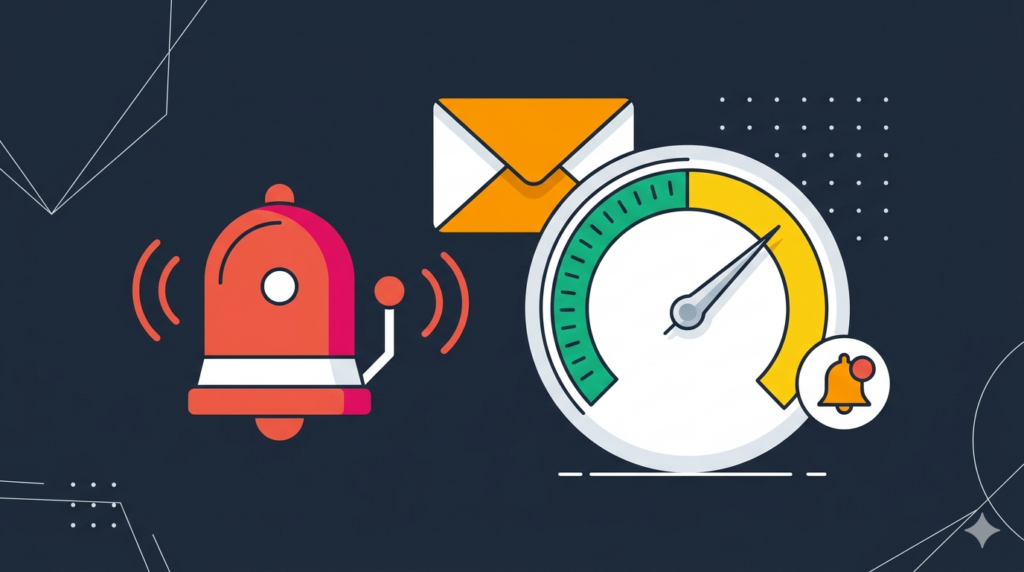
Amazon SES will pause your sending account if your bounce rate climbs above 5% or your complaint rate above 0.1%. By the time you notice, password resets and signup emails are already failing — and getting back out of the suspension queue takes a support ticket plus an explanation of what changed. The cheap insurance is two CloudWatch alarms that page you well before AWS does.
This guide sets up an SNS topic, an email subscription, and two reputation alarms in a single shell session. The commands are run from WSL2 Ubuntu on Windows, but they work the same on macOS or any Linux shell with the AWS CLI installed.
Prerequisites
- An AWS account with Amazon SES already sending production traffic — see How to Send Email Using AWS SES with Cross-Account Secrets Manager for a Lambda-side primer
- AWS CLI v2 installed and configured — see How to Install AWS CLI v2 on Ubuntu 22.04
- An IAM user or role with permission to create SNS topics and CloudWatch alarms (
sns:*,cloudwatch:PutMetricAlarm) - An email inbox you can reach to confirm SNS subscriptions
Understand the Thresholds
SES tracks two account-level reputation metrics in CloudWatch under the AWS/SES namespace:
- Reputation.BounceRate — the rolling rate of hard bounces. AWS pauses sending at 5%.
- Reputation.ComplaintRate — the rolling rate of recipients marking your mail as spam. AWS pauses at 0.1%.
Set your alarm thresholds well below the AWS limits so you have time to react. The values used in this guide are 2% for bounces and 0.05% for complaints — roughly half of what would trigger a pause.
Step 1: Create an SNS Topic for Alerts
The alarms need somewhere to send notifications. Create an SNS topic in the same region as your SES setup.
aws sns create-topic \
  --name ses-alerts \
  --region ap-southeast-1 \
  --query TopicArn --output text
Save the returned ARN — it looks like arn:aws:sns:ap-southeast-1:123456789012:ses-alerts. You will reuse it in the alarm definitions and any future subscriptions (Slack, PagerDuty, Lambda).
Step 2: Subscribe an Email Address
Plain email is the fastest way to start. SNS sends a confirmation link to the address — until you click it, no notifications go through.
aws sns subscribe \
  --topic-arn arn:aws:sns:ap-southeast-1:123456789012:ses-alerts \
  --protocol email \
  --notification-endpoint you@example.com \
  --region ap-southeast-1
Check the inbox for an email titled “AWS Notification – Subscription Confirmation” and click Confirm subscription. The subscription status will move from pending confirmation to a real ARN.
Step 3: Create the Bounce Rate Alarm
This alarm fires when the maximum bounce rate over a 15-minute window exceeds 2%. The --treat-missing-data notBreaching flag prevents false alarms during quiet periods when SES has not emitted a fresh data point.
aws cloudwatch put-metric-alarm \
  --alarm-name ses-high-bounce-rate \
  --alarm-description "SES bounce rate is approaching the 5% pause threshold" \
  --metric-name Reputation.BounceRate \
  --namespace AWS/SES \
  --statistic Maximum \
  --period 900 \
  --evaluation-periods 1 \
  --threshold 0.02 \
  --comparison-operator GreaterThanThreshold \
  --treat-missing-data notBreaching \
  --alarm-actions arn:aws:sns:ap-southeast-1:123456789012:ses-alerts \
  --ok-actions arn:aws:sns:ap-southeast-1:123456789012:ses-alerts \
  --region ap-southeast-1
Flag breakdown:
--statistic Maximum— uses the worst sample in the window so a brief spike is not averaged away--period 900— 15-minute evaluation window (SES emits these metrics every 15 minutes)--evaluation-periods 1— fire on a single breach, no smoothing--threshold 0.02— 2% bounce rate--alarm-actions/--ok-actions— notify both when it breaches and when it recovers
Step 4: Create the Complaint Rate Alarm
Same shape, different metric and threshold. Complaints are far rarer than bounces, but they damage reputation faster — a complaint rate of 0.05% is the warning line.
aws cloudwatch put-metric-alarm \
  --alarm-name ses-high-complaint-rate \
  --alarm-description "SES complaint rate is approaching the 0.1% pause threshold" \
  --metric-name Reputation.ComplaintRate \
  --namespace AWS/SES \
  --statistic Maximum \
  --period 900 \
  --evaluation-periods 1 \
  --threshold 0.0005 \
  --comparison-operator GreaterThanThreshold \
  --treat-missing-data notBreaching \
  --alarm-actions arn:aws:sns:ap-southeast-1:123456789012:ses-alerts \
  --ok-actions arn:aws:sns:ap-southeast-1:123456789012:ses-alerts \
  --region ap-southeast-1
Step 5: Verify the Alarms Are Live
aws cloudwatch describe-alarms \
  --alarm-name-prefix ses- \
  --region ap-southeast-1 \
  --query 'MetricAlarms[*].{Name:AlarmName,State:StateValue,Threshold:Threshold}' \
  --output table
Both alarms will report INSUFFICIENT_DATA at first — that is expected. SES needs enough send volume in the last 15-minute window to compute a reputation rate. Once you send a few hundred messages the state should settle to OK.
What to Do When an Alarm Fires
If the bounce alarm trips, find the bounce reasons before sending more mail. SES tracks them on the dashboard, or you can pull the last day of feedback events from the CloudWatch Logs group your SES configuration set publishes to.
- Bounces — usually a stale list, an outage at a major provider, or a misconfigured From address. Stop the offending sender, prune dead addresses, then resume.
- Complaints — recipients are getting mail they did not ask for. Audit the most recent send, confirm opt-in, and add an unmistakable unsubscribe link if the message did not have one.
Acting on the alarm before AWS does keeps your account in good standing. Letting it ride leads to a paused account and an awkward email to AWS support explaining what you changed.
Conclusion
Two alarms and one SNS subscription are enough to turn SES from a black box into a system you can trust. You will hear about deliverability problems on your terms — not when AWS quietly stops accepting your mail.
From here, swap the email subscription for a Slack or PagerDuty endpoint when volume justifies it, and consider adding a third alarm on Reputation.SendingDeliveryDelay if your application is sensitive to latency. For broader observability patterns, the post on parsing custom logs in Datadog using Grok rules is a useful next read.