Linuxbeast Developer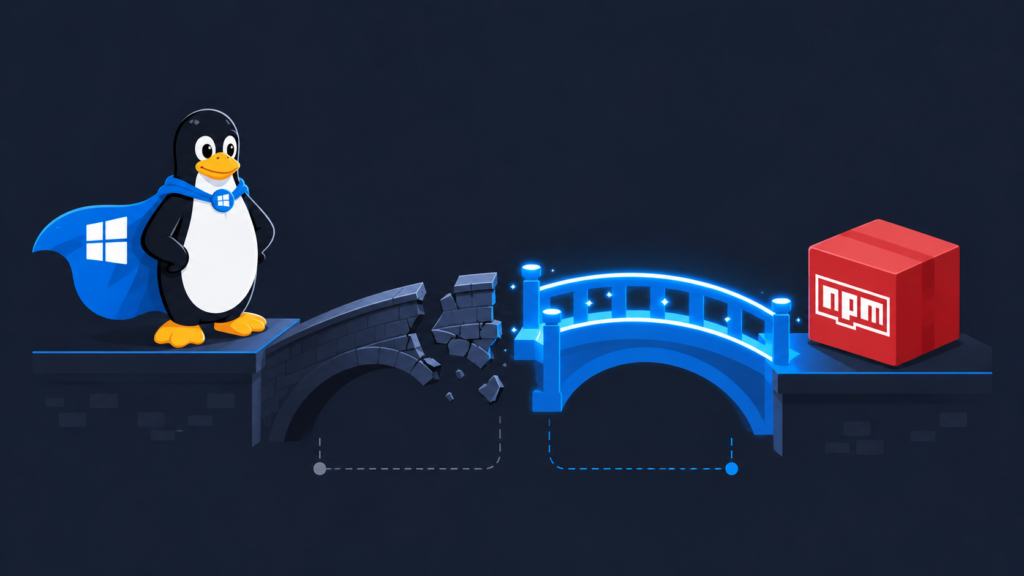
If npm install hangs in WSL2 with a wall of ETIMEDOUT errors against registry.npmjs.org, but Google and most other sites load just fine, the cause is almost always WSL2’s mirrored networking mode conflicting with the route to npm’s Cloudflare CDN. This guide walks you through confirming the issue and switching back to the older, more reliable NAT mode. The examples are run on WSL2 Ubuntu in Windows, but the fix lives in a Windows-side config file.
The Symptom
You run npm install and it crawls, then dies with a log full of lines like:
http fetch GET https://registry.npmjs.org/@vitest/runner/-/runner-4.1.5.tgz attempt 1 failed with ETIMEDOUT
npm error Exit handler never called!
Meanwhile, browsing the web from Windows works perfectly. That mismatch, Windows fine, WSL broken on one specific host, is the fingerprint of a WSL networking problem, not a corporate firewall block. If you suspect a broader WSL connectivity issue, the older guide on resolving internet connection issues in WSL 2 is worth a glance, but this post focuses on the registry-specific case.
Prerequisites
- WSL2 on Windows 10 or 11 (any distro, Ubuntu 22.04 / 24.04 is what we tested)
- Admin access to your Windows user folder (
%USERPROFILE%) - Node.js and npm already installed inside WSL. See How to Switch Node.js Version in WSL Ubuntu if you need to set that up first
Step-by-Step Guide
1. Confirm the registry is what’s blocked
Before changing anything, prove it’s not a general internet outage. Run these in your WSL terminal:
curl -sS -o /dev/null -w "google: HTTP %{http_code} time=%{time_total}s\n" --max-time 8 https://www.google.com
curl -sS -o /dev/null -w "npm:    HTTP %{http_code} time=%{time_total}s\n" --max-time 10 https://registry.npmjs.org/
If Google returns HTTP 200 in under a second and the npm line returns HTTP 000 after timing out, you’re looking at the same issue. HTTP 000 means curl never got a response, the connection just sat there.
2. Confirm Windows itself can reach the registry
Open PowerShell on Windows (not in WSL) and run:
Invoke-WebRequest -UseBasicParsing -Uri 'https://registry.npmjs.org/' -TimeoutSec 10 | Select-Object StatusCodeIf Windows returns StatusCode 200 but WSL still times out, the problem is the bridge between Windows and WSL, exactly what mirrored mode controls.
3. Check your current .wslconfig
The .wslconfig file lives in your Windows user folder and controls how WSL talks to the network. From WSL you can read it via the /mnt/c/ path:
cat /mnt/c/Users/$USER/.wslconfigIf you see networkingMode = mirrored, you’ve found the culprit. Mirrored mode shares the Windows network stack with WSL through a Hyper-V bridge. It’s faster on paper, but it has known issues routing to specific Cloudflare CDN ranges, including the one hosting registry.npmjs.org. Combine it with a corporate VPN like Zscaler and you get exactly the symptom above.
4. Back up the config before changing it
Always keep a copy so you can revert if anything else stops working:
cp /mnt/c/Users/$USER/.wslconfig /mnt/c/Users/$USER/.wslconfig.bak5. Switch to NAT mode
Open %USERPROFILE%\.wslconfig in Notepad (or edit it from WSL) and replace its contents with:
[wsl2]
networkingMode = NAT
dnsTunneling = false
autoProxy = false
firewall = false- networkingMode = NAT: gives WSL its own subnet behind a host-side NAT. This is the classic, well-tested mode.
- dnsTunneling = false: stops WSL from re-resolving names through the Windows resolver, which can return odd answers under a VPN.
- autoProxy = false: prevents WSL from inheriting Windows proxy settings that don’t apply to Linux tools.
- firewall = false: disables the WSL firewall integration. Optional, but removes one more variable while debugging.
6. Shut down WSL fully
Config changes only apply on the next WSL start. From PowerShell on Windows:
wsl --shutdownThis closes every running WSL session. Reopen your terminal to start fresh.
7. Verify and re-run npm install
Back in WSL, re-run the curl check from Step 1:
curl -sS -o /dev/null -w "npm: HTTP %{http_code} time=%{time_total}s\n" --max-time 10 https://registry.npmjs.org/You should now see HTTP 200 in well under a second. Then re-run the install in your project folder:
npm installIf You Need to Revert
If something else breaks under NAT mode (rare, but possible with custom port-forwarding setups), restore the backup and shut down WSL again:
cp /mnt/c/Users/$USER/.wslconfig.bak /mnt/c/Users/$USER/.wslconfigThen run wsl --shutdown in PowerShell.
Conclusion
Mirrored networking mode is convenient, but on machines running a corporate VPN it has a habit of blackholing specific CDN ranges, and npm’s registry sits right in the affected zone. Switching to NAT mode in .wslconfig fixes it in under five minutes and rarely breaks anything else. If you want to go further on WSL networking, related posts worth a read: making resolv.conf changes permanent in WSL 2 and installing Ubuntu 22.04 in WSL2 if you’re rebuilding from scratch. A follow-up post on diagnosing which exact CDN IPs are blocked (using curl --resolve and a tiny traceroute script) is on the way.