Linuxbeast Developer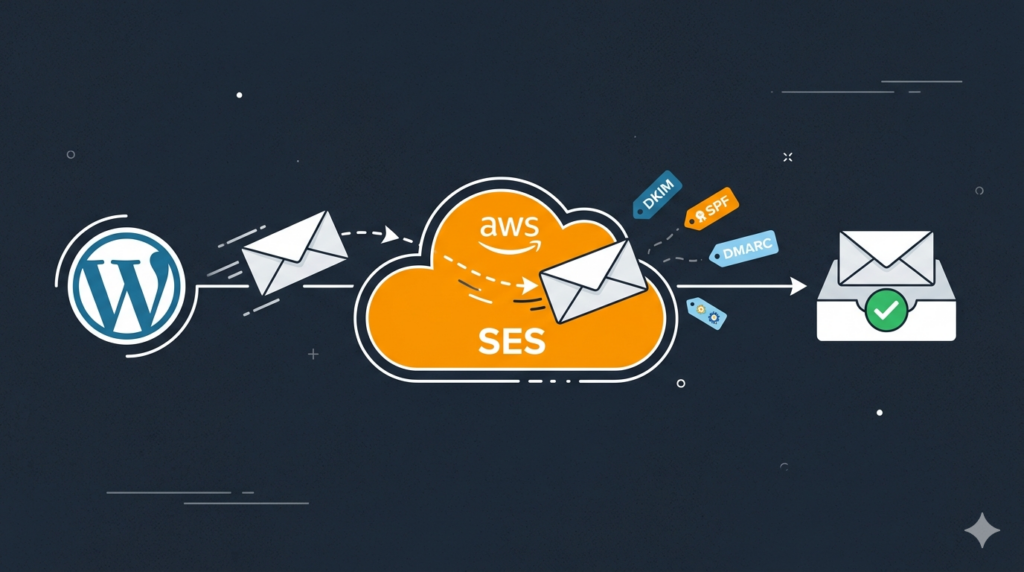
If your WordPress site on AWS Lightsail (Bitnami) is silently dropping password resets, comment notifications, or admin email-change confirmations, the cause is almost always the same: there is no mail transfer agent on the instance, and Lightsail blocks outbound port 25 by default. PHP’s mail() function has nowhere to hand the message off, so wp_mail() returns false and the email never leaves the server.
This guide walks you through fixing it with Amazon SES and the WP Mail SMTP plugin. The examples use the AWS CLI from WSL2 Ubuntu on Windows, but every step works the same on macOS or any Linux shell.
Prerequisites
- A WordPress site on AWS Lightsail Bitnami (or any EC2 instance) — see How to Install WordPress on EC2 Ubuntu 22.04 if you need one
- A domain you control with DNS hosted on Route 53, Cloudflare, or any provider you can edit
- AWS CLI installed and configured — see How to Install AWS CLI v2 on Ubuntu 22.04
- SSH access to your WordPress instance
Confirm the Email Delivery is Broken
SSH into the server and run a test through WP-CLI to see the actual failure mode.
sudo wp --path=/opt/bitnami/wordpress --allow-root eval '
add_action("wp_mail_failed", function($e){ echo "FAIL: " . $e->get_error_message() . PHP_EOL; });
$r = wp_mail("you@example.com", "Test", "test body");
echo "wp_mail returned: " . var_export($r, true) . PHP_EOL;
'
If you see FAIL: Could not instantiate mail function and wp_mail returned: false, the problem is confirmed. PHP cannot find a sendmail binary, so every WordPress email is silently dropped.
Step 1: Verify Your Domain in Amazon SES
Pick the SES region closest to your Lightsail instance (for example, ap-southeast-1 for Singapore). Create a domain identity with Easy DKIM enabled.
aws sesv2 create-email-identity \
  --email-identity example.com \
  --dkim-signing-attributes NextSigningKeyLength=RSA_2048_BIT \
  --region ap-southeast-1
Now fetch the three DKIM tokens you need to publish in DNS.
aws sesv2 get-email-identity \
  --email-identity example.com \
  --region ap-southeast-1 \
  --query 'DkimAttributes.Tokens'
The output is a JSON array of three random-looking strings. Each one becomes a CNAME record at <token>._domainkey.example.com pointing to <token>.dkim.amazonses.com.
Step 2: Publish DKIM, SPF, and DMARC Records
Add the records below to your DNS provider. SES verifies the domain only after the three DKIM CNAMEs resolve correctly.
| Name | Type | Value |
|---|---|---|
| token1._domainkey.example.com | CNAME | token1.dkim.amazonses.com |
| token2._domainkey.example.com | CNAME | token2.dkim.amazonses.com |
| token3._domainkey.example.com | CNAME | token3.dkim.amazonses.com |
| example.com | TXT | v=spf1 include:amazonses.com ~all |
| _dmarc.example.com | TXT | v=DMARC1; p=none; rua=mailto:you@example.com |
SPF tells receiving servers that Amazon SES is authorized to send mail for your domain. DMARC starts in p=none so you only collect reports without affecting delivery — raise it to p=quarantine after you confirm reports look clean.
If your DNS is on Route 53, you can apply all five records in one CLI call. Otherwise, add them through your provider’s dashboard. Verification usually completes within a few minutes.
aws sesv2 get-email-identity \
  --email-identity example.com \
  --region ap-southeast-1 \
  --query '{Verified:VerifiedForSendingStatus,Dkim:DkimAttributes.Status}'
When both fields show SUCCESS / true, the domain is ready to send.
Step 3: Create a Dedicated IAM User for SMTP
Do not reuse your personal AWS access keys for WordPress. Create a separate IAM user with permission to send mail and nothing else. This way, if the WordPress server is ever compromised, the blast radius is one API action.
aws iam create-user --user-name ses-smtp-wordpress

cat > /tmp/ses-policy.json <<'EOF'
{
  "Version": "2012-10-17",
  "Statement": [{
    "Effect": "Allow",
    "Action": "ses:SendRawEmail",
    "Resource": "*"
  }]
}
EOF

aws iam put-user-policy \
  --user-name ses-smtp-wordpress \
  --policy-name SesSendRawEmailOnly \
  --policy-document file:///tmp/ses-policy.json

aws iam create-access-key --user-name ses-smtp-wordpress
Save the AccessKeyId and SecretAccessKey from the last command — the secret is shown only once.
Step 4: Derive the SMTP Password
SES SMTP does not accept the raw IAM secret. You must convert it to an SMTP password using AWS Signature Version 4. Save the script below and run it once.
python3 - <<'PY'
import hmac, hashlib, base64

DATE, SERVICE, MESSAGE, TERMINAL, VERSION = "11111111", "ses", "SendRawEmail", "aws4_request", 0x04

def sign(k, m): return hmac.new(k, m.encode(), hashlib.sha256).digest()
def derive(secret, region):
    s = sign(("AWS4" + secret).encode(), DATE)
    for x in (region, SERVICE, TERMINAL, MESSAGE): s = sign(s, x)
    return base64.b64encode(bytes([VERSION]) + s).decode()

SECRET = "YOUR_IAM_SECRET_ACCESS_KEY"
REGION = "ap-southeast-1"
print("SMTP password:", derive(SECRET, REGION))
PY
The IAM AccessKeyId doubles as the SMTP username. Together with the derived password, you now have everything WordPress needs.
Step 5: Install and Configure WP Mail SMTP
Install the plugin from the command line so you do not have to click through the WordPress dashboard.
sudo wp --path=/opt/bitnami/wordpress --allow-root \
  plugin install wp-mail-smtp --activate
Instead of typing credentials into the plugin’s settings page (where they get stored in the database and exported with every backup), define them as PHP constants in wp-config.php. The plugin reads constants first and treats them as the source of truth.
Edit /opt/bitnami/wordpress/wp-config.php and add the block below just before the /* That's all, stop editing! Happy publishing. */ line.
define( 'WPMS_ON', true );
define( 'WPMS_MAIL_FROM', 'noreply@example.com' );
define( 'WPMS_MAIL_FROM_NAME', 'Your Site Name' );
define( 'WPMS_MAIL_FROM_FORCE', true );
define( 'WPMS_MAIL_FROM_NAME_FORCE', true );
define( 'WPMS_MAILER', 'smtp' );
define( 'WPMS_SET_RETURN_PATH', true );
define( 'WPMS_SMTP_HOST', 'email-smtp.ap-southeast-1.amazonaws.com' );
define( 'WPMS_SMTP_PORT', 587 );
define( 'WPMS_SSL', 'tls' );
define( 'WPMS_SMTP_AUTH', true );
define( 'WPMS_SMTP_AUTOTLS', true );
define( 'WPMS_SMTP_USER', 'AKIAXXXXXXXXXXXXXXXX' );
define( 'WPMS_SMTP_PASS', 'YOUR_DERIVED_SMTP_PASSWORD' );
Tighten the file permissions afterward so the credentials are not world-readable.
sudo chmod 640 /opt/bitnami/wordpress/wp-config.phpStep 6: Send a Test Email
While SES is in the default sandbox, you can only send to addresses you have verified, so verify your inbox first.
aws sesv2 create-email-identity \
  --email-identity you@example.com \
  --region ap-southeast-1
SES sends a verification email — click the link, then run the WP-CLI test again. A successful return value of true means the message was handed off to SES. Confirm the message lands in your inbox (not spam) — this is your sign that DKIM and SPF align.
sudo wp --path=/opt/bitnami/wordpress --allow-root eval '
$r = wp_mail("you@example.com", "SES test", "Hello from WordPress via Amazon SES.");
echo var_export($r, true) . PHP_EOL;
'
Step 7: Request Production Access
The sandbox limits you to 200 messages per day and verified recipients only — fine for testing, useless for real users. Submit a production access request from the CLI.
aws sesv2 put-account-details \
  --region ap-southeast-1 \
  --mail-type TRANSACTIONAL \
  --website-url "https://example.com" \
  --contact-language EN \
  --use-case-description "Transactional email for a WordPress site: password resets, comment notifications, admin email-change confirmations. Volume under 500/day. Bounce and complaint suppression enabled." \
  --production-access-enabled
AWS reviews the request within 24 hours. Keep the description short, honest, and focused on the use case — vague answers slow approval.
Conclusion
WordPress now sends email through Amazon SES instead of a non-existent local sendmail binary. Password resets, admin notifications, and plugin alerts will all reach their destination, and DKIM signing means they are far less likely to land in spam.
Two follow-ups worth doing: set a CloudWatch alarm on the SES bounce and complaint rates so you catch problems before AWS does, and after a couple of weeks of clean DMARC reports, raise your policy from p=none to p=quarantine. If you want a deeper look at SES from Lambda or cross-account setups, the post on sending email using AWS SES with cross-account Secrets Manager is a good next read.