Linuxbeast Developer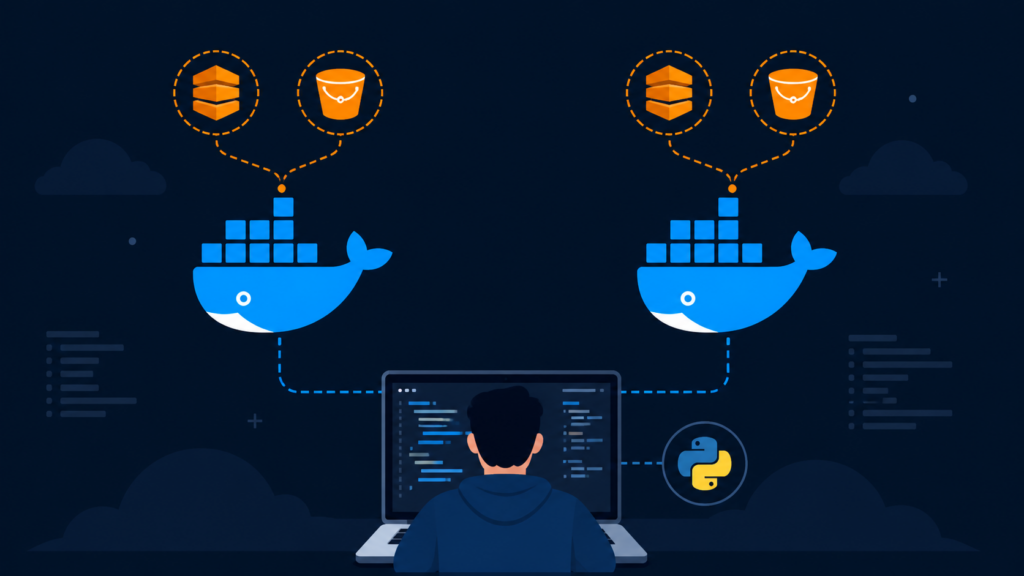
Running AWS serverless code locally saves you money and makes development much faster. You don’t need a real AWS account to write Lambda code that talks to DynamoDB and S3. With Docker Compose, you can spin up DynamoDB Local and LocalStack on your machine and point your boto3 client at them. The same code that works locally then runs unchanged in real AWS — only the endpoint URL changes.
The examples in this guide are run on WSL2 Ubuntu in Windows, but they work the same on any Ubuntu system or macOS.
Why Run AWS Locally?
Three reasons developers do this:
- No AWS bill while you’re iterating. DynamoDB and S3 are cheap, but a runaway integration test loop can still rack up charges.
- Faster feedback loop. No network round-trip to AWS — table creates and puts complete in milliseconds.
- Safer for a shared dev account. You won’t accidentally delete a teammate’s data or hit a rate limit while debugging.
DynamoDB Local is an official AWS-published image that emulates DynamoDB. LocalStack is a third-party project (originally created by Waldemar Hummer and maintained by LocalStack GmbH) that emulates dozens of AWS services — S3, Secrets Manager, SNS, SQS, Lambda, and more. We’ll use DynamoDB Local for DynamoDB and LocalStack for everything else, since LocalStack’s free tier covers what most apps need.
Prerequisites
- Docker and Docker Compose installed (Docker Desktop on Windows + WSL integration, or Docker Engine on Linux). If you hit permission issues on WSL, see Resolving WSL Permission Denied When Connecting to Docker Daemon.
- Python 3.10+ with
boto3installed. - AWS CLI v2 for inspecting tables and buckets — see How to Install AWS CLI v2 on Ubuntu 22.04 if you need it.
- If you’re on Windows, you’ll want WSL2 — see How to Install Ubuntu 20.04 or 22.04 in WSL 2 on Windows 10.
Step 1: Create the docker-compose.yml
Create a project folder and add a docker-compose.yml with two services — DynamoDB Local on port 8000 and LocalStack on port 4566.
services:
  dynamodb-local:
    image: amazon/dynamodb-local:2.5.3
    container_name: ddb-local
    ports:
      - "8000:8000"
    command: -jar DynamoDBLocal.jar -sharedDb -inMemory

  localstack:
    image: localstack/localstack:3.8
    container_name: localstack
    ports:
      - "4566:4566"
    environment:
      - SERVICES=s3,secretsmanager
      - DEFAULT_REGION=us-east-1
      - AWS_DEFAULT_REGION=us-east-1
What each part does:
amazon/dynamodb-local:2.5.3— the official AWS DynamoDB Local image.-sharedDb -inMemory— uses a single in-memory DB across all clients. Restart wipes everything (more on that below).localstack/localstack:3.8— LocalStack community image.SERVICES=s3,secretsmanager— only loads the services you need; speeds up startup.
Step 2: Start the Services
docker compose up -d
docker compose ps
You should see both containers listed as Up. LocalStack pulls a larger image (~600 MB), so the first start can take a couple of minutes.
Quick health check from the terminal:
curl -s http://localhost:4566/_localstack/health
curl -s http://localhost:8000/
LocalStack returns a JSON list of available services. DynamoDB Local responds with a small JSON page — that means it’s accepting connections.
Step 3: Point boto3 at the Local Endpoints
The trick that makes this work: boto3 accepts an endpoint_url argument that overrides the default AWS endpoint. Set it to http://localhost:8000 for DynamoDB and http://localhost:4566 for everything else.
Create a .env file:
AWS_REGION=us-east-1
AWS_ACCESS_KEY_ID=local
AWS_SECRET_ACCESS_KEY=local
DYNAMODB_ENDPOINT=http://localhost:8000
S3_ENDPOINT=http://localhost:4566
SECRETSMANAGER_ENDPOINT=http://localhost:4566
The local values for the access keys are dummies — DynamoDB Local and LocalStack don’t validate credentials, but boto3 still requires them to be set.
Step 4: Create a Table and Put an Item
Save this as local_test.py:
import os
import boto3
from dotenv import load_dotenv

load_dotenv()

ddb = boto3.client(
    "dynamodb",
    endpoint_url=os.environ["DYNAMODB_ENDPOINT"],
    region_name=os.environ["AWS_REGION"],
)

ddb.create_table(
    TableName="users",
    KeySchema=[{"AttributeName": "user_id", "KeyType": "HASH"}],
    AttributeDefinitions=[{"AttributeName": "user_id", "AttributeType": "S"}],
    BillingMode="PAY_PER_REQUEST",
)

ddb.put_item(
    TableName="users",
    Item={"user_id": {"S": "u-001"}, "name": {"S": "Alice"}},
)

print(ddb.get_item(TableName="users", Key={"user_id": {"S": "u-001"}})["Item"])
Run it:
pip install boto3 python-dotenv
python local_test.py
You should see the item printed back. The exact same code, with endpoint_url removed, would work against real AWS DynamoDB.
Step 5: Test S3 and Secrets Manager via LocalStack
Same pattern, different endpoint. Use the AWS CLI with --endpoint-url to verify quickly:
AWS_ACCESS_KEY_ID=local AWS_SECRET_ACCESS_KEY=local \
  aws --endpoint-url http://localhost:4566 --region us-east-1 \
  s3 mb s3://my-app-artifacts

AWS_ACCESS_KEY_ID=local AWS_SECRET_ACCESS_KEY=local \
  aws --endpoint-url http://localhost:4566 --region us-east-1 \
  secretsmanager create-secret --name my-app/api-key --secret-string '{"key":"abc123"}'
From Python it looks the same as DynamoDB — a boto3 client with endpoint_url=http://localhost:4566.
Inspecting Your Local Data
The AWS CLI works against either emulator with the right endpoint. Useful one-liners:
# List DynamoDB tables
aws --endpoint-url http://localhost:8000 dynamodb list-tables

# Scan a table
aws --endpoint-url http://localhost:8000 dynamodb scan --table-name users --output table

# List S3 buckets and contents
aws --endpoint-url http://localhost:4566 s3 ls
aws --endpoint-url http://localhost:4566 s3 ls s3://my-app-artifacts/ --recursive

# Read a secret
aws --endpoint-url http://localhost:4566 secretsmanager get-secret-value --secret-id my-app/api-key
Common Gotchas
Port 8000 is already taken
Lots of dev tools default to port 8000 — Django, Flask, Python’s http.server. Either stop the conflicting process or remap DynamoDB Local in your docker-compose.yml:
ports:
  - "8001:8000"
Then update DYNAMODB_ENDPOINT in your .env to http://localhost:8001.
Data wipes on container restart
The -inMemory flag means DynamoDB Local stores everything in RAM — a docker compose down wipes it. That’s by design; it gives you a clean state every session. If you need persistence, drop -inMemory and add a volume mount:
services:
  dynamodb-local:
    image: amazon/dynamodb-local:2.5.3
    ports:
      - "8000:8000"
    command: -jar DynamoDBLocal.jar -sharedDb -dbPath /home/dynamodblocal/data
    volumes:
      - ./ddb-data:/home/dynamodblocal/data
LocalStack free tier limits
The free LocalStack image covers S3, Secrets Manager, SNS, SQS, Lambda, DynamoDB Streams, and a few others. Some advanced features (IAM enforcement, Cognito, RDS) require a paid Pro license. For most local dev work the free tier is enough.
Don’t load services you’re not using
Setting SERVICES=s3,secretsmanager tells LocalStack to only spin up those services. Without it, LocalStack loads everything, which uses more RAM and slows startup. List only what your app actually calls.
Tear Down
docker compose downThis stops and removes the containers. With the in-memory setup, all your local data goes with them — re-create tables and seed buckets when you start the next session.
When to Use Moto Instead
For unit tests, moto is usually a better fit than docker-compose. Moto is a Python library (originally created by Steve Pulec, maintained by the moto team) that mocks AWS services in-process — no containers needed. Use docker-compose when you want a long-running local environment to play with from a CLI or browser; use moto when you want fast, isolated unit tests that mock AWS calls without any external setup.
Conclusion
Two containers and a handful of endpoint_url overrides give you a working local AWS environment for serverless development. Your Lambda code, scripts, and integration tests run against DynamoDB Local and LocalStack the same way they will against real AWS — just point them at localhost instead. No account, no bill, no shared-dev surprises.
From here, a natural next step is wiring this into a real Lambda deployment workflow — see Understanding Lambda’s Event and Context Parameters if you’re new to writing Lambda handlers, or How to Structure Your Python Projects for AWS Lambda, APIs, and CLI Tools for laying out a Lambda repo so the same code runs both locally and in AWS.