The Problem: Manually Created Resources That Don’t Match Your IaC
If you work in ops or platform engineering, you’ve seen this before. A developer needs a DynamoDB table in QA to unblock their work. The ops team is busy firefighting a production incident. The developer has admin access, so they create the table themselves — picks a name, sets it up, and moves on. Totally reasonable.
A week later, another developer does the same thing in UAT with a slightly different naming pattern. Then someone manually creates the prod version with yet another convention. Now you have three tables across three environments with inconsistent names:
- QA:
order-tracking-qa(suffix pattern) - UAT:
order-tracking-uat(suffix pattern) - PROD:
prod-order-tracking(prefix pattern)
Your Serverless Framework config generates names like ${stage}-order-tracking, which produces qa-order-tracking, uat-order-tracking, prod-order-tracking. Only prod matches. The QA and UAT tables exist outside your CloudFormation stack, with names your IaC doesn’t know about.
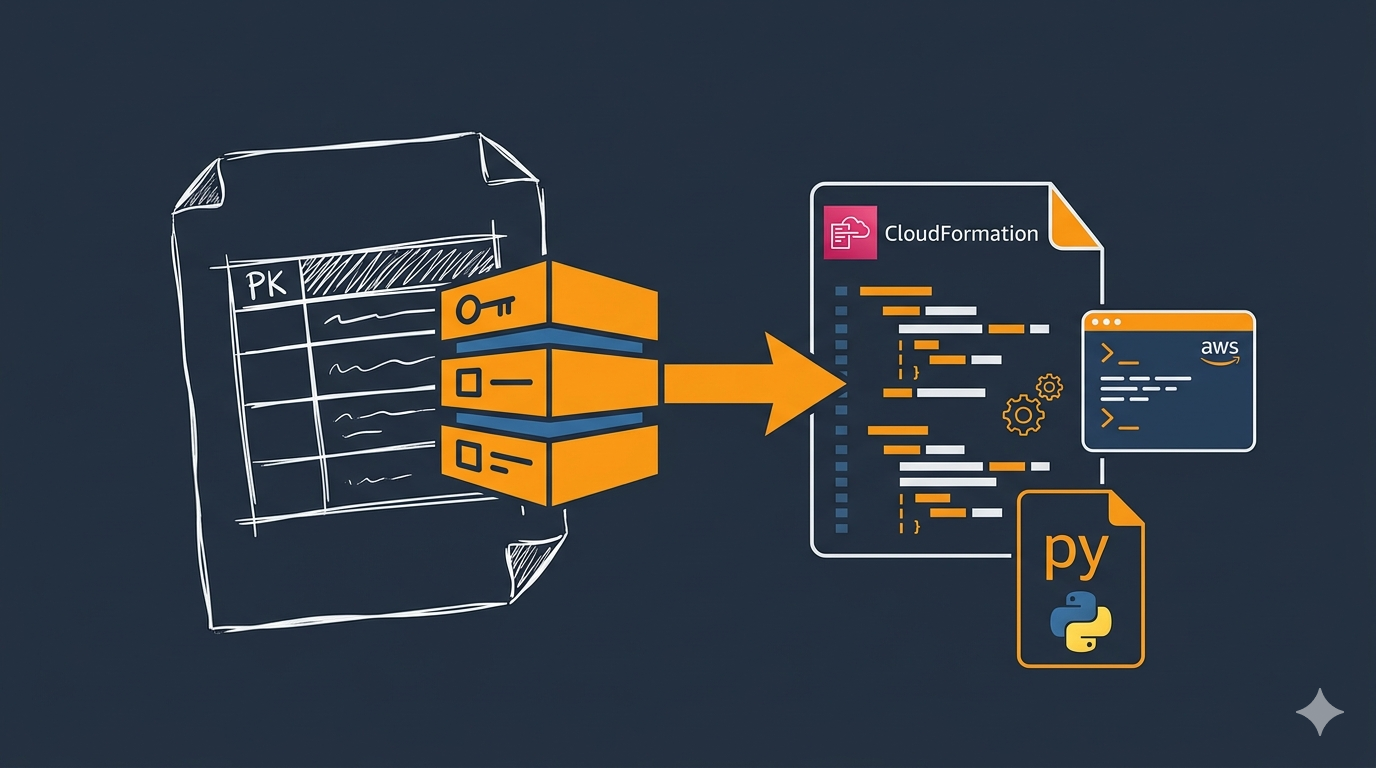
This is config drift — and the longer it sits, the harder it gets to fix. The challenge is: how do you bring these manually-created resources into your IaC without losing data or breaking running services?
This guide walks through the migration process we used to standardize DynamoDB table names and bring everything under CloudFormation control. The examples are run on WSL2 Ubuntu in Windows, but they work the same on any system with AWS CLI and Python installed.
Why DynamoDB Tables Can’t Be Renamed
AWS DynamoDB does not provide a rename operation. The table name is set at creation time and cannot be changed. If you need a different name, the only option is to create a new table with the correct name, copy the data over, and delete the old one.
Prerequisites
- AWS CLI v2 installed and configured
- Python 3 installed
- IAM permissions for
dynamodb:Scan,dynamodb:BatchWriteItem,dynamodb:CreateTable, anddynamodb:DeleteTable - An AWS CLI profile configured for the target account — see How to Configure AWS SSO CLI Access for Linux Ubuntu if you’re using SSO
The Migration Strategy
The approach depends on the environment. For non-production (QA, UAT), you can create new tables via your IaC deployment, migrate the data, and delete the old ones. For production — where a table with the correct name already exists — you use a temporary table as a buffer.
Either way, the core steps are the same:
- Backup the source table to a local JSON file
- Create the new table with the correct name (via IaC deploy or AWS CLI)
- Migrate data using batch writes
- Verify the item count matches
- Delete the old table
Step 1: Backup the Source Table
Always backup first. Use aws dynamodb scan to export all items to a local JSON file. If anything goes wrong during migration, you can restore from this file.
aws dynamodb scan \
  --table-name order-tracking-qa \
  --profile my-aws-profile \
  --region us-east-1 \
  --output json > backup-order-tracking-qa.json
Check how many items were exported:
python3 -c "
import json
data = json.load(open('backup-order-tracking-qa.json'))
print(f'{data[\"Count\"]} items backed up')
"
Note: dynamodb scan returns up to 1 MB of data per call. For tables larger than 1 MB, the response includes a LastEvaluatedKey and you’ll need to paginate. For small tables (a few thousand items), a single scan is enough.
Step 2: Create the New Table via IaC
The whole point of this migration is to bring the table under IaC control. Define the table in your serverless.yml (or Terraform config) and let the deployment create it with the standardized name.
Here’s an example Serverless Framework resource:
resources:
  Resources:
    OrderTrackingTable:
      Type: AWS::DynamoDB::Table
      DeletionPolicy: Retain
      Properties:
        TableName: ${sls:stage}-order-tracking
        BillingMode: PAY_PER_REQUEST
        AttributeDefinitions:
          - AttributeName: companyId
            AttributeType: S
          - AttributeName: recordId
            AttributeType: S
          - AttributeName: createdAt
            AttributeType: S
        KeySchema:
          - AttributeName: companyId
            KeyType: HASH
          - AttributeName: recordId
            KeyType: RANGE
        GlobalSecondaryIndexes:
          - IndexName: recordId-index
            KeySchema:
              - AttributeName: recordId
                KeyType: HASH
            Projection:
              ProjectionType: ALL
          - IndexName: companyId-createdAt-index
            KeySchema:
              - AttributeName: companyId
                KeyType: HASH
              - AttributeName: createdAt
                KeyType: RANGE
            Projection:
              ProjectionType: ALL
Two things to note here:
DeletionPolicy: Retaintells CloudFormation to keep the table even if the stack is deleted or rolled back. This protects your data during deployments.- The schema must exactly match the source table — same key schema, attribute definitions, GSIs, and billing mode. If they differ, you’ll get errors during the migration or your application will break.
Deploy to create the table:
npx serverless deploy --stage qa --region us-east-1
This creates qa-order-tracking — the correctly-named table, managed by CloudFormation.
Step 3: Migrate Data with a Python Script
DynamoDB’s batch-write-item API accepts up to 25 items per request. This Python script reads from the backup file and writes to the new table in batches:
python3 -c "
import subprocess, json

src_backup = 'backup-order-tracking-qa.json'
dst_table = 'qa-order-tracking'
profile = 'my-aws-profile'
region = 'us-east-1'

# Read from backup
with open(src_backup) as f:
    items = json.load(f)['Items']

print(f'Migrating {len(items)} items to {dst_table}')

total_written = 0
for i in range(0, len(items), 25):
    batch = items[i:i+25]
    request_items = {dst_table: [{'PutRequest': {'Item': item}} for item in batch]}

    result = subprocess.run([
        'aws', 'dynamodb', 'batch-write-item',
        '--request-items', json.dumps(request_items),
        '--profile', profile,
        '--region', region,
        '--output', 'json'
    ], capture_output=True, text=True)

    if result.returncode != 0:
        print(f'ERROR in batch {i//25}: {result.stderr}')
        break

    resp = json.loads(result.stdout)
    unprocessed = resp.get('UnprocessedItems', {}).get(dst_table, [])
    total_written += len(batch) - len(unprocessed)
    if unprocessed:
        print(f'WARNING: {len(unprocessed)} unprocessed items in batch {i//25}')

print(f'Total written: {total_written}')
"
How it works:
- Reads all items from the backup JSON file
- Splits them into batches of 25 (the DynamoDB
batch-write-itemlimit) - Calls
aws dynamodb batch-write-itemfor each batch viasubprocess - Checks for unprocessed items — these can happen if you hit throughput limits
- Reports the total items written
Step 4: Verify the Migration
Compare the item count in the new table against the backup:
aws dynamodb scan \
  --table-name qa-order-tracking \
  --profile my-aws-profile \
  --region us-east-1 \
  --select COUNT \
  --query 'Count' \
  --output text
If the counts match, the migration is good.
Step 5: Delete the Old Table
Once you’ve confirmed the data is in the new table and your application is pointing to the new table name, delete the old one:
aws dynamodb delete-table \
  --table-name order-tracking-qa \
  --profile my-aws-profile \
  --region us-east-1
Keep the backup JSON file around for a while in case you need to restore.
Migrating Multiple Tables Across Environments
If you have several tables to migrate, extend the script to loop through them:
python3 -c "
import subprocess, json

profile = 'my-aws-profile'
region = 'us-east-1'

migrations = [
    ('order-tracking-qa', 'qa-order-tracking'),
    ('user-settings-qa', 'qa-user-settings'),
]

for src, dst in migrations:
    # Scan source
    result = subprocess.run([
        'aws', 'dynamodb', 'scan',
        '--table-name', src,
        '--profile', profile,
        '--region', region,
        '--output', 'json'
    ], capture_output=True, text=True)

    items = json.loads(result.stdout)['Items']
    print(f'{src} -> {dst}: {len(items)} items')

    # Batch write
    total = 0
    for i in range(0, len(items), 25):
        batch = items[i:i+25]
        req = {dst: [{'PutRequest': {'Item': item}} for item in batch]}
        r = subprocess.run([
            'aws', 'dynamodb', 'batch-write-item',
            '--request-items', json.dumps(req),
            '--profile', profile,
            '--region', region,
            '--output', 'json'
        ], capture_output=True, text=True)
        if r.returncode != 0:
            print(f'  ERROR: {r.stderr}')
            break
        resp = json.loads(r.stdout)
        unprocessed = resp.get('UnprocessedItems', {}).get(dst, [])
        total += len(batch) - len(unprocessed)
    print(f'  Written: {total}')
"
Handling Production: The Temp Table Strategy
Production requires extra care. In our case, the prod table (prod-order-tracking) already had the correct name — it was created manually with the right convention. But our IaC needed to own it. The problem: deploying the Serverless Framework stack would try to create the table, and fail because it already exists.
The solution is to use a temporary table as a buffer:
- Create a temp table (
prod-order-tracking-temp) with the same schema - Migrate all data from the original table to the temp table
- Verify the temp table has all the data
- Delete the original table
- Deploy your IaC — CloudFormation creates the new table with the correct name
- Migrate data from the temp table back to the new table
- Verify and delete the temp table
This approach has a brief window where the table doesn’t exist (between step 4 and 5). For production, coordinate this during a maintenance window or when traffic is low. The deployment itself usually takes under a minute for a DynamoDB table.
Why Not CloudFormation Import?
CloudFormation does support importing existing resources into a stack. You can use aws cloudformation create-change-set with --change-set-type IMPORT to bring a manually-created table under stack management without recreating it.
This works when the existing table name matches what your template generates. But when the names don’t match — which is the whole reason we’re migrating — import doesn’t help. You’d import a table with the wrong name, and still need to migrate.
The backup-migrate-delete approach is more straightforward for name changes, and it works regardless of whether you’re using CloudFormation, Terraform, or any other IaC tool.
Preventing Config Drift in the First Place
Developers creating resources manually in lower environments is normal and expected. They need to move fast, and ops can’t always be available. A few practices that help keep things manageable:
- Document your naming convention — put it in a README or wiki. If developers know the pattern is
${stage}-${service}-${resource}, they’re more likely to follow it when creating things by hand. - Use
DeletionPolicy: Retainin CloudFormation for stateful resources like DynamoDB tables. This protects data even if a deployment goes wrong. - Reconcile regularly — periodically check what exists in AWS against what’s defined in your IaC. AWS Config or a simple script comparing
aws dynamodb list-tablesoutput against your templates can catch drift early. - Make IaC deployment easy — if deploying a new table through the pipeline takes 30 minutes of config changes and approvals, developers will skip it. If it’s a one-line addition to a config file and a pipeline run, they’ll use it.
Conclusion
DynamoDB’s lack of a rename operation makes table migrations a manual process, but it’s safe and straightforward with AWS CLI and a simple Python script. Backup first, migrate in batches, verify counts, then clean up. For production, use a temp table as a buffer to minimize downtime.
The bigger takeaway: manually-created resources are going to happen. The goal isn’t to prevent it — it’s to have a clear process for bringing those resources under IaC control when the time comes.
If you’re working with cross-account access patterns alongside DynamoDB, check out How to Set Up Cross-Account Access in AWS with AssumeRole. For moving data between S3 buckets across accounts, see How to Copy S3 Bucket Objects Across AWS Accounts.