Claude Code is a command-line tool by Anthropic that lets you work with Claude directly from your terminal. You can use it for code reviews, debugging, generating scripts, and working with project files. This guide walks you through installing Claude Code CLI on WSL2 Ubuntu.
WSL2 is the better environment for Claude Code on Windows — it has full Bash support, native Linux paths, and plays nicely with tools like Docker and Terraform. If you’d rather install on PowerShell directly, see How to Install and Configure Claude Code CLI on Windows PowerShell.
Prerequisites
- Windows 10 or 11 with WSL2 enabled and Ubuntu installed — see How to Install Ubuntu 20.04 or 22.04 in WSL 2 on Windows 10 if you need to set this up
- An Anthropic account (free tier available) or API key
Step 1: Install Node.js with NVM
Claude Code requires Node.js 18 or later. The easiest way to install and manage Node.js versions on WSL is with NVM (Node Version Manager). If you already have Node.js 18+ installed, skip to Step 2.
Install NVM:
curl -o- https://raw.githubusercontent.com/nvm-sh/nvm/v0.40.1/install.sh | bashClose and reopen your terminal (or run source ~/.bashrc) so NVM loads. Then install the latest LTS version of Node.js:
nvm install --ltsVerify both are working:
node --version
npm --version
If you need to switch between Node.js versions later, check out How to Switch Node.js Version in WSL Ubuntu.
Step 2: Install Claude Code CLI
npm install -g @anthropic-ai/claude-code-g— installs globally so theclaudecommand is available from any directory.
Verify the installation:
claude --versionStep 3: Authenticate
Run claude to start the authentication flow:
claudeThe CLI presents three login options:
- Claude account (subscription) — uses your claude.ai Pro/Team plan.
- Anthropic Console (API billing) — uses API credits from your Anthropic account.
- Third-party platform — connects through AWS Bedrock, Google Vertex AI, or other providers.
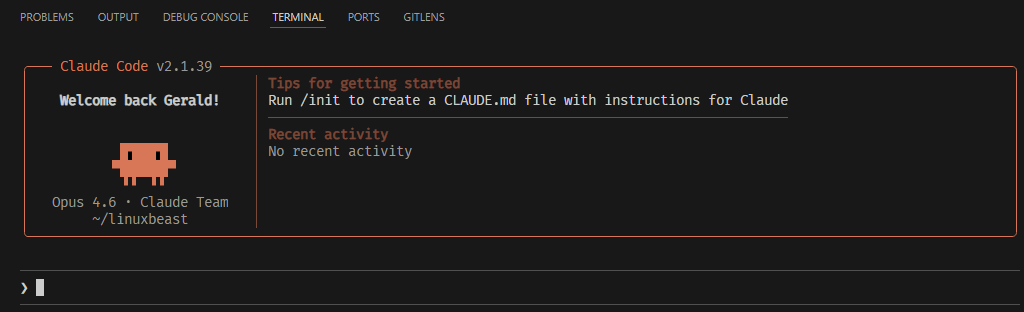
Pick one and follow the browser prompt to log in. WSL2 will open the URL in your Windows default browser. Once you approve, you’re authenticated.
Basic Usage
Claude Code reads files in your current directory, so cd into your project first.
Start an interactive session:
cd ~/projects/my-app
claude
Ask a one-off question with -p (print mode):
claude -p "review this terraform code and suggest improvements"Pipe output from another command:
cat error.log | claude -p "explain this error and suggest a fix"Update Claude Code
npm update -g @anthropic-ai/claude-codeTroubleshooting
claude: command not found
NVM’s global npm directory might not be in your PATH. Check where npm installs global packages:
npm config get prefixMake sure that path’s bin directory is in your PATH. If you installed Node.js via NVM, this is usually handled automatically. Try closing and reopening your terminal.
EACCES permission error during install
Don’t use sudo with npm install -g when using NVM. NVM installs Node.js in your home directory, so global packages should install without root. If you’re getting permission errors, fix the npm directory ownership:
sudo chown -R $(whoami) $(npm config get prefix)/{lib/node_modules,bin,share}Slow file performance
If Claude Code feels slow when reading files, make sure your project is in the Linux file system (/home/yourname/) and not on the Windows mount (/mnt/c/). WSL2 file access across the mount boundary is significantly slower.
Security Tips
- Don’t paste real credentials, API keys, or secrets into prompts.
- If using API billing, set the key as an environment variable (
export ANTHROPIC_API_KEY="your-key"in~/.bashrc) instead of passing it inline. - Review any generated infrastructure code or IAM policies before applying them.
Conclusion
That covers installing Claude Code CLI on WSL2 Ubuntu. With NVM handling Node.js and npm handling the Claude package, the whole setup takes just a few minutes.
If you’re also setting up your WSL environment, you might find How to Connect Visual Studio Code with WSL 2 for Linux Ubuntu useful for connecting VS Code to your WSL instance.