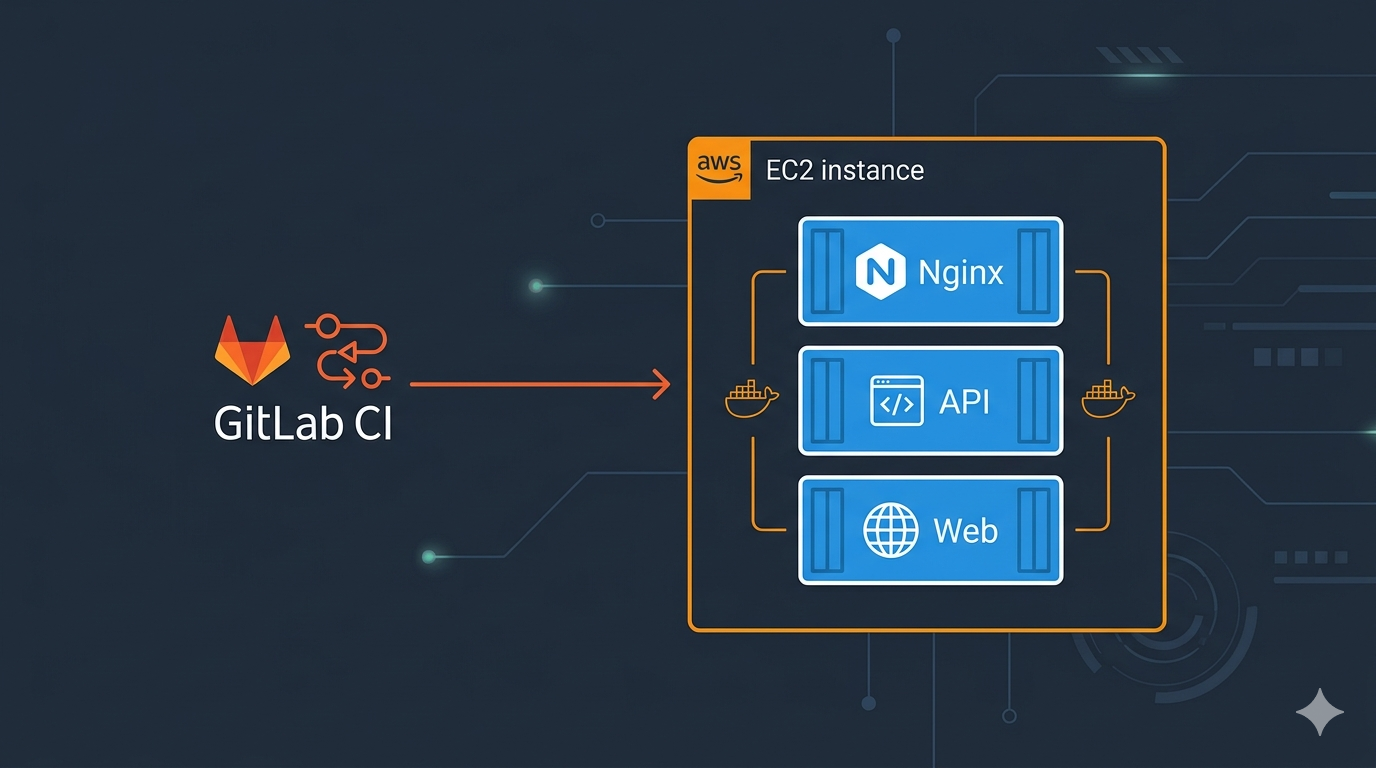
Two .NET apps, one EC2 instance, three containers. Docker Compose with Nginx as a reverse proxy is the cheapest way to run multiple apps on a single server. No ECS, no Kubernetes.
This guide covers the full setup: Nginx reverse proxy, Docker Compose for production and local dev, config management via mounted appsettings files, and a GitLab CI pipeline to deploy to EC2.
Architecture
Client → ALB (HTTPS :443) → EC2 (Nginx :80)
                                    |
                        +-----------+-----------+
                        |                       |
/api/* → API (:8080) /* → Web (:8080)- API — .NET 10 REST API (port 8080)
- Web — Blazor Server frontend (port 8080)
- Nginx — reverse proxy, routes
/api/*to API, everything else to Web
Prerequisites
- Docker and Docker Compose v2 installed
- AWS CLI v2 configured
- An EC2 instance with Docker — see How to deploy EC2 on AWS
- A .NET project with Dockerfiles for each app
Project Structure
my-project/
  InventoryApi/
    Dockerfile
  InventoryWeb/
    Dockerfile
  deploy/
    docker-compose.yml          # Production (pulls from registry)
    docker-compose.local.yml    # Local dev (builds from source)
    nginx.conf                  # Reverse proxy config
    run-local.sh                # Local dev runner script
    .env.example                # Env template (values injected by CI/CD)
Step 1: Nginx Config
Create deploy/nginx.conf. The /_blazor block with WebSocket upgrade headers is required for Blazor Server’s SignalR connection — without it the UI won’t load.
worker_processes auto;

events {
    worker_connections 1024;
}

http {
    upstream api {
        server api:8080;
    }

    upstream web {
        server web:8080;
    }

    server {
        listen 80;
        server_name _;

        # API endpoints
        location /api/ {
            proxy_pass http://api;
            proxy_set_header Host $host;
            proxy_set_header X-Real-IP $remote_addr;
            proxy_set_header X-Forwarded-For $proxy_add_x_forwarded_for;
            proxy_set_header X-Forwarded-Proto $scheme;
        }

        # Swagger and OpenAPI docs
        location /swagger {
            proxy_pass http://api;
            proxy_set_header Host $host;
            proxy_set_header X-Real-IP $remote_addr;
            proxy_set_header X-Forwarded-For $proxy_add_x_forwarded_for;
        }

        location /openapi {
            proxy_pass http://api;
            proxy_set_header Host $host;
            proxy_set_header X-Real-IP $remote_addr;
            proxy_set_header X-Forwarded-For $proxy_add_x_forwarded_for;
        }

        # Blazor SignalR WebSocket (required for Blazor Server)
        location /_blazor {
            proxy_pass http://web;
            proxy_http_version 1.1;
            proxy_set_header Upgrade $http_upgrade;
            proxy_set_header Connection "upgrade";
            proxy_set_header Host $host;
            proxy_set_header X-Real-IP $remote_addr;
            proxy_set_header X-Forwarded-For $proxy_add_x_forwarded_for;
            proxy_read_timeout 86400;
        }

        # Web UI (default)
        location / {
            proxy_pass http://web;
            proxy_set_header Host $host;
            proxy_set_header X-Real-IP $remote_addr;
            proxy_set_header X-Forwarded-For $proxy_add_x_forwarded_for;
            proxy_set_header X-Forwarded-Proto $scheme;
        }
    }
}
Step 2: Production Docker Compose
Create deploy/docker-compose.yml. This pulls pre-built images and mounts environment-specific config files.
services:
  api:
    image: ${REGISTRY}/api:${IMAGE_TAG:-latest}
    container_name: inventory-api
    restart: unless-stopped
    environment:
      - ASPNETCORE_ENVIRONMENT=${ASPNETCORE_ENVIRONMENT:-Production}
      - ASPNETCORE_FORWARDEDHEADERS_ENABLED=true
      - ASPNETCORE_HTTP_PORTS=8080
      - ASPNETCORE_URLS=http://+:8080
      - AWS_PROFILE=cross-account
    volumes:
      - ./appsettings.api.json:/app/appsettings.${ASPNETCORE_ENVIRONMENT:-Production}.json:ro
      - ./aws-config:/home/app/.aws/config:ro
    healthcheck:
      test: ["CMD-SHELL", "dotnet --list-runtimes > /dev/null 2>&1 || exit 1"]
      interval: 10s
      timeout: 5s
      retries: 5
      start_period: 15s
    networks:
      - app-network

  web:
    image: ${REGISTRY}/web:${IMAGE_TAG:-latest}
    container_name: inventory-web
    restart: unless-stopped
    environment:
      - ASPNETCORE_ENVIRONMENT=${ASPNETCORE_ENVIRONMENT:-Production}
      - ASPNETCORE_FORWARDEDHEADERS_ENABLED=true
      - ASPNETCORE_HTTP_PORTS=8080
      - ASPNETCORE_URLS=http://+:8080
    volumes:
      - ./appsettings.web.json:/app/appsettings.${ASPNETCORE_ENVIRONMENT:-Production}.json:ro
    healthcheck:
      test: ["CMD-SHELL", "dotnet --list-runtimes > /dev/null 2>&1 || exit 1"]
      interval: 10s
      timeout: 5s
      retries: 5
      start_period: 15s
    networks:
      - app-network

  nginx:
    image: nginx:alpine
    container_name: inventory-nginx
    restart: unless-stopped
    ports:
      - "80:80"
    volumes:
      - ./nginx.conf:/etc/nginx/nginx.conf:ro
    depends_on:
      api:
        condition: service_healthy
      web:
        condition: service_healthy
    networks:
      - app-network

networks:
  app-network:
    driver: bridge
Key details:
- Appsettings mounts — environment-specific config files are mounted as
appsettings.{Environment}.json. .NET automatically merges baseappsettings.json(baked into the image) with the mounted file. - AWS cross-account config — the
aws-configfile is mounted at/home/app/.aws/config(not/root— the container runs as non-root userapp). This enables cross-account AssumeRole via instance profile credentials. - Health checks —
dotnet --list-runtimesworks as a process check since the .NET base image doesn’t includecurl. Addcurlto your Dockerfile if you need HTTP health checks. - Forwarded headers —
ASPNETCORE_FORWARDEDHEADERS_ENABLED=trueis needed when running behind a reverse proxy (Nginx, ALB) so the app sees the correct client IP and protocol.
Step 3: Local Dev Docker Compose
Create deploy/docker-compose.local.yml. Builds from source, mounts your local AWS credentials, exposes on port 8080.
services:
  api:
    build:
      context: ..
      dockerfile: InventoryApi/Dockerfile
    container_name: inventory-api
    restart: unless-stopped
    environment:
      - ASPNETCORE_ENVIRONMENT=${ASPNETCORE_ENVIRONMENT:-Development}
      - AWS_DEFAULT_REGION=${AWS_DEFAULT_REGION:-us-east-1}
      - AWS_PROFILE=${AWS_PROFILE:-default}
    volumes:
      - ~/.aws:/home/app/.aws:ro
    healthcheck:
      test: ["CMD-SHELL", "dotnet --list-runtimes > /dev/null 2>&1 || exit 1"]
      interval: 10s
      timeout: 5s
      retries: 5
      start_period: 15s
    networks:
      - app-network

  web:
    build:
      context: ..
      dockerfile: InventoryWeb/Dockerfile
    container_name: inventory-web
    restart: unless-stopped
    environment:
      - ASPNETCORE_ENVIRONMENT=${ASPNETCORE_ENVIRONMENT:-Development}
      - AWS_DEFAULT_REGION=${AWS_DEFAULT_REGION:-us-east-1}
      - AWS_PROFILE=${AWS_PROFILE:-default}
    volumes:
      - ~/.aws:/home/app/.aws:ro
    healthcheck:
      test: ["CMD-SHELL", "dotnet --list-runtimes > /dev/null 2>&1 || exit 1"]
      interval: 10s
      timeout: 5s
      retries: 5
      start_period: 15s
    networks:
      - app-network

  nginx:
    image: nginx:alpine
    container_name: inventory-nginx
    restart: unless-stopped
    ports:
      - "8080:80"
    volumes:
      - ./nginx.conf:/etc/nginx/nginx.conf:ro
    depends_on:
      api:
        condition: service_healthy
      web:
        condition: service_healthy
    networks:
      - app-network

networks:
  app-network:
    driver: bridge
Step 4: Local Runner Script
Create deploy/run-local.sh. Takes an environment name (qa or prod) and maps it to the correct ASPNETCORE_ENVIRONMENT and AWS_PROFILE.
#!/bin/bash
set -e

SCRIPT_DIR="$(cd "$(dirname "$0")" && pwd)"

ENV="${1:-qa}"

case "$ENV" in
  qa)
    export ASPNETCORE_ENVIRONMENT=Development
    export AWS_PROFILE=your-qa-profile
    ;;
  prod)
    export ASPNETCORE_ENVIRONMENT=Production
    export AWS_PROFILE=your-prod-profile
    ;;
  *)
    echo "Usage: ./run-local.sh [qa|prod] [up|down|logs|restart|status]"
    exit 1
    ;;
esac

export AWS_DEFAULT_REGION=us-east-1

cd "$SCRIPT_DIR"

case "${2:-up}" in
  up)
    echo "Building and starting containers..."
    docker compose -f docker-compose.local.yml build
    docker compose -f docker-compose.local.yml up -d
    sleep 15
    docker compose -f docker-compose.local.yml ps
    echo ""
    curl -sf http://localhost:8080/api/health && echo "" || echo "API health check failed"
    echo ""
    echo "API:     http://localhost:8080/api/health"
    echo "Swagger: http://localhost:8080/swagger"
    echo "Web UI:  http://localhost:8080/"
    ;;
  down)
    docker compose -f docker-compose.local.yml down
    ;;
  logs)
    docker compose -f docker-compose.local.yml logs -f
    ;;
  restart)
    docker compose -f docker-compose.local.yml down
    docker compose -f docker-compose.local.yml build
    docker compose -f docker-compose.local.yml up -d
    ;;
  status)
    docker compose -f docker-compose.local.yml ps
    ;;
  *)
    echo "Usage: ./run-local.sh [qa|prod] [up|down|logs|restart|status]"
    exit 1
    ;;
esac
Usage:
chmod +x deploy/run-local.sh

./deploy/run-local.sh qa up        # Build and start with QA config
./deploy/run-local.sh qa logs      # Stream logs
./deploy/run-local.sh qa down      # Stop
Step 5: GitLab CI/CD Variables
No .env files are committed to the repo. The CI/CD pipeline generates all config at deploy time using GitLab CI/CD variables. Set these in Settings → CI/CD → Variables:
| Variable | Type | Environment | Description |
|---|---|---|---|
API_APPSETTINGS |
File | qa, prod | API appsettings JSON (mounted into container) |
WEB_APPSETTINGS |
File | qa, prod | Web appsettings JSON (mounted into container) |
SSH_PRIVATE_KEY |
File | qa, prod | PEM key for EC2 SSH access |
APP_NAME |
Variable | All | Application name (used in deploy path and container names) |
DEPLOY_ROLE_ARNS |
Variable | All | IAM role ARN(s) for cross-account access |
Environment-scoped variables (qa, prod) let the same pipeline deploy to different environments with different configs. The .env file on EC2 is generated by the pipeline — never committed to the repo.
Step 6: Configuration Strategy
Don’t bake environment-specific config into Docker images. Instead:
- Base config —
appsettings.jsonbaked into the image (logging defaults, no secrets) - Env-specific config —
appsettings.api.jsonandappsettings.web.jsongenerated from CI/CD file variables, SCPd to EC2, mounted into containers - .env file — generated by CI/CD pipeline from GitLab variables (
ASPNETCORE_ENVIRONMENT,REGISTRY,IMAGE_TAG) — never committed to the repo
Docker Compose mounts the env-specific file as appsettings.{Environment}.json:
volumes:
  - ./appsettings.api.json:/app/appsettings.${ASPNETCORE_ENVIRONMENT}.json:ro
.NET merges them automatically: base appsettings.json → mounted appsettings.{env}.json → final config.
Step 7: Cross-Account AWS Access
If your app needs to access AWS resources in a different account (e.g., DynamoDB, S3), mount an AWS config file with an AssumeRole profile:
# aws-config (mounted to /home/app/.aws/config)
[profile cross-account]
role_arn = arn:aws:iam::TARGET_ACCOUNT_ID:role/YourCrossAccountRole
credential_source = Ec2InstanceMetadata
Set AWS_PROFILE=cross-account in docker-compose so the SDK automatically assumes the role using the EC2 instance profile credentials.
Mount path must match the container’s home directory — /home/app/.aws/config for non-root containers, not /root/.aws/config.
For the full cross-account IAM setup, see How to Set Up Cross-Account Access in AWS with AssumeRole.
Step 8: GitLab CI Pipeline
This pipeline builds Docker images, generates config files from CI/CD variables, SCPs everything to EC2, and deploys.
stages:
  - build
  - deploy

variables:
  REGISTRY: ${CI_REGISTRY_IMAGE}

build-api:
  stage: build
  image: docker:latest
  services:
    - docker:dind
  before_script:
    - docker login -u ${CI_REGISTRY_USER} -p ${CI_REGISTRY_PASSWORD} ${CI_REGISTRY}
  script:
    - docker build -t ${REGISTRY}/api:${CI_COMMIT_SHORT_SHA} -t ${REGISTRY}/api:latest -f InventoryApi/Dockerfile .
    - docker push ${REGISTRY}/api --all-tags
  rules:
    - if: '$CI_COMMIT_BRANCH == "main" || $CI_COMMIT_TAG =~ /^v\d+\.\d+\.\d+.*$/'

build-web:
  stage: build
  image: docker:latest
  services:
    - docker:dind
  before_script:
    - docker login -u ${CI_REGISTRY_USER} -p ${CI_REGISTRY_PASSWORD} ${CI_REGISTRY}
  script:
    - docker build -t ${REGISTRY}/web:${CI_COMMIT_SHORT_SHA} -t ${REGISTRY}/web:latest -f InventoryWeb/Dockerfile .
    - docker push ${REGISTRY}/web --all-tags
  rules:
    - if: '$CI_COMMIT_BRANCH == "main" || $CI_COMMIT_TAG =~ /^v\d+\.\d+\.\d+.*$/'

deploy:
  stage: deploy
  image: alpine:latest
  before_script:
    - apk add --no-cache openssh-client curl
    - eval $(ssh-agent -s)
    - echo "${SSH_PRIVATE_KEY}" | ssh-add -
    - mkdir -p ~/.ssh
    - echo -e "Host *\n\tStrictHostKeyChecking no\n" > ~/.ssh/config
  script:
    # SCP deploy files
    - scp deploy/docker-compose.yml deploy/nginx.conf ec2-user@${EC2_HOST}:/opt/my-app/
    # Generate and SCP config files
    - cp "${API_APPSETTINGS}" appsettings.api.json
    - cp "${WEB_APPSETTINGS}" appsettings.web.json
    - |
      cat > .env << EOF
      ASPNETCORE_ENVIRONMENT=${APP_ENVIRONMENT}
      REGISTRY=${REGISTRY}
      IMAGE_TAG=${CI_COMMIT_SHORT_SHA}
      EOF
    - |
      cat > aws-config << EOF
      [profile cross-account]
      role_arn = ${CROSS_ACCOUNT_ROLE_ARN}
      credential_source = Ec2InstanceMetadata
      EOF
    - scp appsettings.api.json appsettings.web.json .env aws-config ec2-user@${EC2_HOST}:/opt/my-app/
    # Deploy
    - |
      ssh ec2-user@${EC2_HOST} << DEPLOY
        cd /opt/my-app
        docker login -u ${GITLAB_DEPLOY_USER} -p ${GITLAB_DEPLOY_TOKEN} registry.gitlab.com
        docker compose pull
        docker compose up -d --remove-orphans
        sleep 10
        curl -f http://localhost/api/health || exit 1
        echo "Deploy successful"
      DEPLOY
  rules:
    - if: '$CI_COMMIT_BRANCH == "main" || $CI_COMMIT_TAG =~ /^v\d+\.\d+\.\d+.*$/'
      when: manual
CI/CD variables needed in GitLab project settings:
See Step 5 above for the full list of required CI/CD variables.
Step 9: Provision the EC2 Instance
Terraform resource with user data that installs Docker and Compose on Amazon Linux 2023:
data "aws_ami" "al2023" {
  most_recent = true
  owners      = ["amazon"]
  filter {
    name   = "name"
    values = ["al2023-ami-*-x86_64"]
  }
  filter {
    name   = "virtualization-type"
    values = ["hvm"]
  }
}

resource "aws_instance" "app" {
  ami                    = data.aws_ami.al2023.id
  instance_type          = "t3.medium"
  subnet_id              = var.subnet_id
  vpc_security_group_ids = [var.security_group_id]
  iam_instance_profile   = var.instance_profile_name

  root_block_device {
    volume_size = 30
    volume_type = "gp3"
    encrypted   = true
  }

  user_data = base64encode(<<-EOF
    #!/bin/bash
    set -e
    yum update -y
    yum install -y docker
    systemctl enable docker
    systemctl start docker
    usermod -aG docker ec2-user

    DOCKER_CONFIG=/usr/local/lib/docker/cli-plugins
    mkdir -p $DOCKER_CONFIG
    curl -SL https://github.com/docker/compose/releases/latest/download/docker-compose-linux-x86_64 -o $DOCKER_CONFIG/docker-compose
    chmod +x $DOCKER_CONFIG/docker-compose

    mkdir -p /opt/my-app
    chown ec2-user:ec2-user /opt/my-app
  EOF
  )

  tags = {
    Name = "my-app-server"
  }

  lifecycle {
    ignore_changes = [ami]
  }
}
The lifecycle block prevents Terraform from replacing the instance when a newer AMI is released. Amazon Linux 2023 doesn’t include Docker, so the user data script handles installation.
Step 10: First Deploy
# Copy deploy files to EC2
scp deploy/docker-compose.yml deploy/nginx.conf ec2-user@your-host:/opt/my-app/

# Copy config files (normally done by CI/CD)
scp appsettings.api.json appsettings.web.json .env aws-config ec2-user@your-host:/opt/my-app/

# SSH in and start
ssh ec2-user@your-host
cd /opt/my-app
docker login registry.gitlab.com -u your-deploy-user -p your-deploy-token
docker compose pull
docker compose up -d

# Verify
curl http://localhost/api/health
After that, the GitLab CI pipeline handles all future deploys.
Files on EC2
/opt/my-app/
  docker-compose.yml       # From repo (SCP)
  nginx.conf               # From repo (SCP)
  .env                     # Generated by CI/CD
  appsettings.api.json     # Generated by CI/CD (API config)
  appsettings.web.json     # Generated by CI/CD (Web config)
  aws-config               # Generated by CI/CD (cross-account AssumeRole)
Cost: EC2 vs ECS Fargate
| Approach | Monthly Cost |
|---|---|
| EC2 t3.medium (On-Demand) | ~$33 |
| EC2 t3.medium (1yr Reserved) | ~$21 |
| ECS Fargate (2 tasks) + ALB | ~$52 |
EC2 with a shared ALB saves ~35% over Fargate with a dedicated ALB. The trade-off is managing the instance yourself.
Conclusion
Docker Compose with Nginx gives you path-based routing, WebSocket support for Blazor, health checks, auto-restart, and CI/CD — all on a single EC2 instance without the complexity of ECS or Kubernetes.
Related guides: Cross-Account Access with AssumeRole | Pull Docker Images from GitLab Registry